If you liked this, Pin to Pinterest, or save for later.
The Complete Guide to Squarespace Forms: From Basic Setup to Clever Conditional Logic.
Struggling to collect the right information from your website visitors? Are generic contact forms no longer cutting it? Or perhaps you're wondering how to create forms that actually feel like a conversation rather than an interrogation?
In this blog post, we'll cover:
How to set up Squarespace forms the proper way (step-by-step walk-through)
The game-changing 2025 conditional logic feature that most people don't know about yet
Creative ways to use forms beyond basic contact pages
Pro tips for maximising submissions and keeping your data organised
Common mistakes that are leaving potential clients' information on the table
Whether you're a coach or creative needing intake forms, an educator collecting registrations, or a service pro wanting to qualify leads before hopping on calls, Squarespace forms can do far more than you might think. And the best bit? You don't need any fancy plugins or coding knowledge.
And if you’re thinking about working together: Visit my Services Page, Web Design Packages, and Squarespace Support page. 🤎
What Are Squarespace Forms (and Why Should You Care)?
Think of Squarespace forms as your website's conversation starters. They're customisable blocks you can add to any page to collect information from visitors—names, emails, project details, whatever you need. But here's the thing most people miss: forms aren't just about gathering data. They're about creating an experience that makes people want to share their information with you.
A well-designed form can be the difference between a visitor bouncing off your site and a qualified lead landing in your inbox.
According to recent research, blog articles generate 29% of organic traffic; however, conversion-focused pages, such as forms, convert 4x times better when done correctly.
- Neil Patel's research reviewing 15,000 websites in 2025
The Three Types of Information You Can Collect:
Essential contact details - Name, email, phone number (the basics, but presented thoughtfully)
Qualifying information - Budget, timeline, services needed (helps you prioritise your time)
Preference data - Communication style, availability, specific requirements (makes your follow-up feel personal, not robotic)
How to Add a Squarespace Form: Step-by-Step
Right then, let's get into the practical bits. Setting up a basic form is actually dead simple, but doing it well requires a bit more thought.
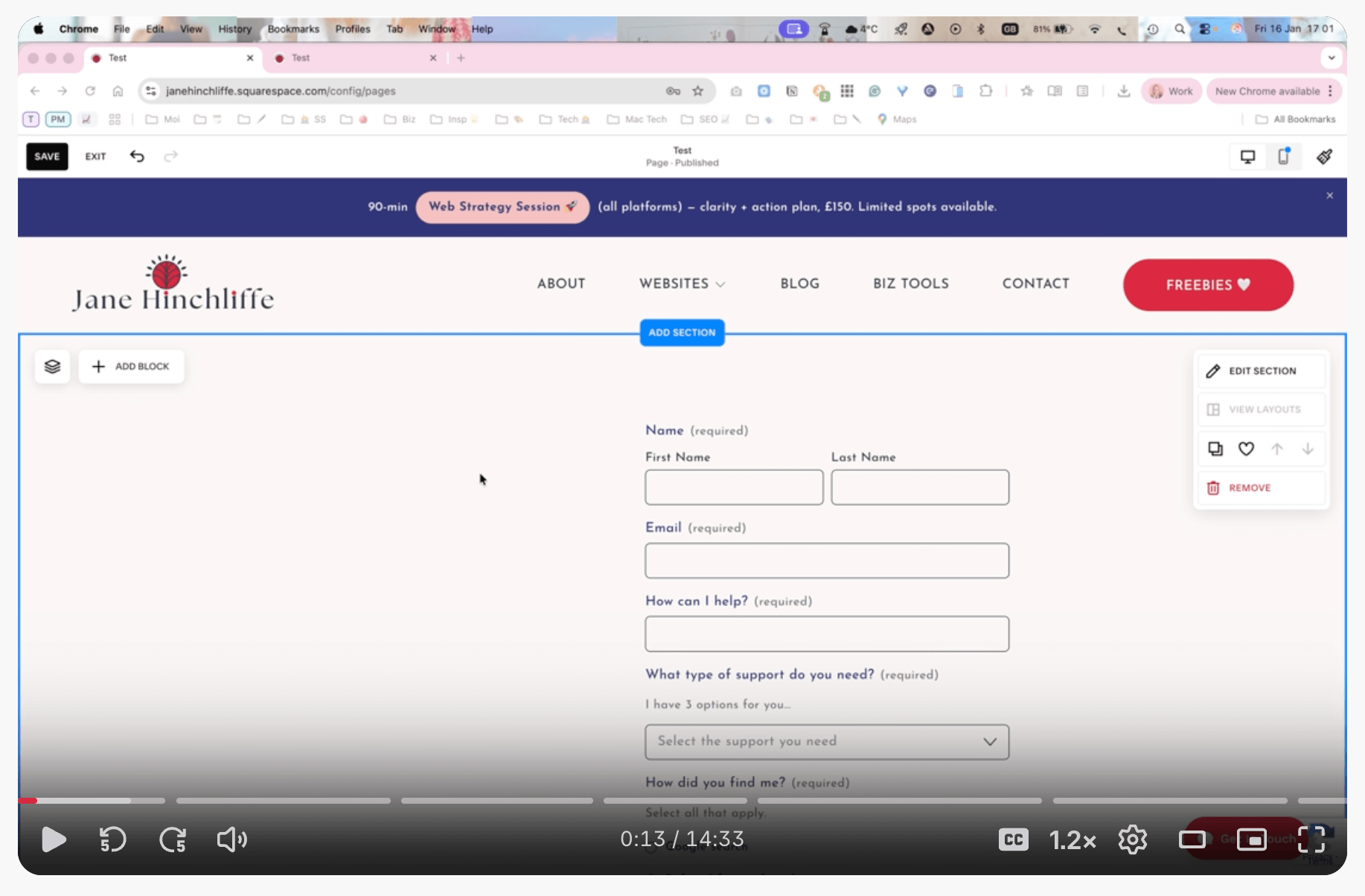
Walkthrough video on Squarespace forms and conditional logic.
Step 1: Navigate to Your Page
Log in to your Squarespace dashboard
Click on Pages in the left-hand menu
Select the page where you want your form (or create a new one—I often recommend a contact page or a dedicated 'Work with Me' or 'Get Started' page)
Step 2: Add the Form Block
Click Edit on your chosen page
Hover over the area where you want the form
Click the + icon to add a block
Select Form from the menu that appears
Voilà! You've got yourself a form. But we're not done yet.
Step 3: Customise Your Form Fields
This is where the magic happens. Click the pencil icon on your form, then select Edit Form Fields.
You'll see options for:
Name (First name, Last name, or Full name)
Email (always make this required—you need a way to respond!)
Phone Number (great for service businesses)
Address (if you're local or need physical location details)
Subject (helps you categorise enquiries)
Message (the open-ended bit)
Dropdown (perfect for service options or enquiry types)
Radio Buttons (single choice questions)
Checkboxes (multiple choice options)
Date and Time (brilliant for booking enquiries)
Pro tip: Don't ask for everything under the sun. Every additional field reduces your completion rate. Ask only for what you absolutely need at this stage. You can always gather more information later.
Step 4: Configure Your Storage Options
Here's something crucial that trips people up: you must connect a storage option, or your form won't work. Squarespace doesn't store submissions automatically in the form block itself.
Click the Storage tab and choose at least one option:
Email Address - Get submissions sent directly to your inbox (I always recommend this as your primary option)
Form Submitters List - Stores submissions in Squarespace's Contacts panel (mega useful for building your database)
Google Drive - Creates a spreadsheet automatically (fab for tracking and analysis)
Mailchimp - Adds submitters directly to your email list
Zapier - Connects to virtually any other app you use
I always recommend setting up two storage options. If one fails (and we all know, tech does have its moments), you've got a backup.
Step 5: Customise the Post-Submit Message
Don't leave your visitors hanging! After someone submits your form, they should see a message that:
Confirms their submission went through
Sets expectations for your response time
Provides any next steps
Something like: "Lovely! I've received your message, and I'll get back to you within 48 hours. In the meantime, feel free to browse my [portfolio/blog/resources]."
The Game-Changer: Conditional Logic (Follow-Up Questions)
This is a feature that's not discussed nearly enough, and it's absolutely transforming how professional websites collect information.
What Is Conditional Logic?
Conditional logic was added to Squarespace in 2025. It’s what Squarespace calls "follow-up questions". This means your form adapts based on how someone answers previous questions. It's like having a conversation rather than handing someone a clipboard with 20 questions.
Here's a real-world scenario:
You're a Pilates instructor offering three different service levels. Instead of asking irrelevant questions about all three, your form asks:
"Which service interests you?"
1:1 instruction
In-person class
Online class
Let’s say they select "1:1 instruction," a follow-up question appears: "How familiar are you with Pilates?"
Next, there are 3 choices:
“I’m fairly proficient, just need some specific help”.
“I’ve been to a few classes”.
“No experience”.
Next, the visitor is invited to choose a date they would like to meet for a 1:1 instruction.
If they select “Class at my Studio”, they’ll be directed to provide an email address.
If they select “Online Class”, they’ll be prompted to download a PDF class schedule.
The result? Higher completion rates (people only answer what's relevant to them), better quality leads (you get exactly the information you need), and more professional experience (feels tailored, not generic).
How to Add Conditional Logic to Your Forms
This feature works with four field types: Dropdown, Checkbox, Radio Buttons, and Survey questions.
Step-by-step:
Add your main question (e.g., a dropdown asking about service interest)
Click the three dots next to any answer option
Select Add Follow-Up Question
Choose which type of field you want to use for the follow-up
Configure your follow-up question
Repeat for other options as needed
You can add multiple follow-ups to the same option if needed. For instance, if someone selects "1:1 Instruction", you might ask both "What date are you available?" and "How many sessions per month?"
Important limitations to know:
Squarespace currently supports one level of conditional logic (follow-ups can't trigger more follow-ups—yet!)
The follow-up questions appear below the parent question, not on a separate page
Creative Ways to Use Conditional Logic
1. Service-Based Businesses
Main question: "What type of support do you need?"
One-off website audit → Follow-up: "Which platform is your site built on?"
Ongoing maintenance → Follow-up: "How many hours per month?"
Full website design → Follow-up: "Do you have existing brand guidelines?"
2. Coaches and Consultants
Main question: "Where are you in your business journey?"
Just starting → Follow-up: "What's your biggest challenge at the moment?"
Established but stuck → Follow-up: "What's working well already?"
Scaling phase → Follow-up: "What systems do you already have in place?"
3. Event Registrations
Main question: "Will you attend in person or virtually?"
In person → Follow-up: "Do you have any dietary requirements?"
Virtual → Follow-up: "Which time zone are you in?"
4. The "Other" Option Done Right
Instead of providing endless dropdown options, use: Main question: "Which service interests you?" (List your main 3-4 options, then add "Other")
Other → Follow-up: "Please describe what you're looking for"
Beyond Contact Forms: Clever Uses for Squarespace Forms
Most people pop a contact form on their contact page and call it done. But forms can do so much more:
1. Project Enquiry Forms with Smart Qualification
Create a dedicated "Start a Project" page with a form that qualifies leads before they reach your inbox. Ask about:
Budget range (use a dropdown to make it less awkward)
Timeline expectations
What they've already tried
How they found you
This saves you from discovery calls with people who aren't ready to invest or whose timeline doesn't match your availability.
2. Waitlist Sign-Ups That Build Anticipation
Launching a new programme or course? Create a waitlist form that:
Captures interest and email
Asks what specific outcomes they're after
Collects questions they want answered
When you're ready to launch, you've got a ready-made audience who've already expressed interest.
3. Resource Request Forms That Grow Your List
Offering a free guide, checklist, or template? Instead of a generic newsletter pop-up, create a proper landing page with a form that:
Feels less spammy than a pop-up
Can ask qualifying questions (e.g., "What's your biggest challenge with website design?")
Segments your audience from the start
4. Feedback and Testimonial Collection
Make it easy for happy clients to leave feedback with a form that asks:
What was their situation before working with you?
What changed after?
What would they tell someone considering your services?
Can you use their feedback publicly? (checkbox for permission)
5. VIP Day Booking Forms
If you offer intensive one-day sessions (like my VIP Squarespace maintenance days), use a form to:
Check availability preferences
Gather all necessary details upfront
Set expectations about what's included
Collect payment or deposit information if you're using Squarespace Commerce
6. Speaker or Podcast Guest Applications
If you speak at events or guest on podcasts, create an "Invite Me" page with a form collecting:
Event/podcast name and audience size
The topic they want you to cover
Date and format (in-person, virtual, pre-recorded)
Compensation or exposure offered
This feels far more professional than asking people to email you with "whatever details."
Pro Tips for Forms That Actually Get Completed
I've designed many optimised forms over the years, and these tips consistently boost completion rates:
1. Keep It Conversational
Instead of: "Please provide your full legal name" Try: "What should I call you?"
Instead of: "State your specific requirements" Try: "What brought you to my website today?"
A previous blog post: Show Your Brand Personality On Your Website
2. Use Field Descriptions Wisely
Below each field, you can add a description. Use this to:
Set expectations ("I'll respond within 2 business days")
Ease concerns ("Your email won't be shared with anyone")
Provide guidance ("Be as specific as possible—it helps me prepare for our call")
3. Make Your Button Text Actionable
Instead of "Submit" (it sounds like homework). Try:
"Let's Chat"
"Send My Message"
"Yes, I'm Interested"
"Get My Free Guide"
4. Style Your Forms Intentionally
Forms should match your brand, but also be clearly visible. Make sure:
Field labels are easy to read
There's enough contrast between the text and the background
Required fields are clearly marked
Your form doesn't get lost in your page design
Go to Design in your form settings to adjust colours, fonts, and spacing.
5. Test on Mobile
Over 60% of web traffic is mobile now. Test the following:
Open your site on your phone and try completing your form. Are the fields too small?
Does the keyboard cover important information?
Is it easy to tap the submit button?
Common Form Mistakes That Cost You Leads

Mistake 1: Asking for Too Much Information
I see this constantly. A simple contact form that asks for name, email, phone, company, industry, website URL, budget, timeline, how they found you, and their favourite colour (okay, I'm exaggerating on that last one, but you get my point).
Each additional field is a barrier. Start with essentials only.
Mistake 2: Not Having a Clear Privacy Policy
With GDPR and general privacy concerns, people want to know what you'll do with their data. You might want to link to your privacy policy or add a note below the form.
Mistake 3: No Confirmation Message
If someone submits a form and sees nothing, they'll submit it again. And again. Then you've got three identical submissions, and they're wondering if you got any of them. Always include a clear confirmation message.
Mistake 4: Only Having One Storage Option
Your primary email service could have a wobbly day. The internet might have a bit of a situation. Always have a backup storage option.
Mistake 5: Burying Your Forms
If someone has to click through five pages to find your contact form, they won't bother. Make forms easy to find—in your navigation, footer, and strategically throughout your site.
How to Keep Your Form Submissions Organised
Here's what I do for my clients (and what I'd recommend for you):
Use Squarespace's Contacts Panel as Your Primary Database
This stores all form submissions with required email fields in one place within Squarespace. You can:
Add tags to categorise leads
Add notes about each contact
Track communication history
Export data when needed
Set Up Google Drive as Your Backup
Google Sheets automatically updates with each submission, giving you a tidy spreadsheet that's easy to:
Sort and filter
Share with team members
Use for reporting and analysis
Keep it as a backup
Connect to Your CRM via Zapier
If you use a CRM like Bloom, Dubsado, HubSpot, Honeybook, or Airtable, connect your forms via Zapier to automatically:
Create new contacts
Trigger workflows
Assign tags based on form responses
Send automated follow-up emails
Forms and GDPR: What You Need to Know
If you're working with UK or EU clients (or if you're based here like me), you need to handle personal data properly:
Required elements:
Clear statement about what you'll do with the information
Link to your privacy policy
Consent checkbox for marketing communications (must be unchecked by default)
An easy way for people to request data deletion
Good practice: Only collect data you actually need. Don't ask for a phone number if you'll never call. Don't ask for their address if you work remotely.
Link: GDPR compliance resources from ICO (UK)
LEGAL POLICIES: I use Termageddon for their comprehensive, auto-updating website policy generator tool - than any other solution out there. I use and recommend to my clients. They also have great support.
Use the code HINCHLIFFE for 10% OFF.
Troubleshooting: When Forms Don't Work
Problem: "Form submissions aren't reaching me"
Check:
Is a storage option connected?
Is the email address correct?
Check your spam folder
Verify your domain email is working properly
Problem: "The form looks rubbish on mobile"
Edit your form in Desktop view, then switch to Mobile preview
Adjust spacing and sizing specifically for mobile
Consider using a single-column layout for mobile
Problem: "People are starting forms but not finishing them"
Reduce the number of required fields
Add progress indicators if it's a long form
Test the form yourself—is anything confusing?
Check if the submit button is clearly visible
Bonus: Squarespace Forms + AI for Better Lead Follow-Up
Here's something clever you might not have considered: Use Squarespace forms to feed data into AI tools via Zapier.
Example workflow:
Someone submits your form
Zapier catches the submission
It feeds the information to an AI tool (like ChatGPT)
The AI drafts a personalised follow-up email based on their specific responses
You review and send (or set it to auto-send with your approval)
This is particularly brilliant if you get a lot of enquiries and want to respond quickly with personalised touches, not generic templates.
The Bottom Line: Forms Are Your 24/7 Business Development Team
Think of it this way: Your forms work whilst you're sleeping, walking the dog, or enjoying a proper cup of tea. They're qualifying leads, collecting information, and building your database around the clock.
But only if they're set up properly. A form that's too long, too confusing, or buried three clicks deep isn't working for you—it's working against you.
With the new conditional logic features Squarespace rolled out in March 2025, there's absolutely no reason your forms can't be as smart and intuitive as a real conversation. And that's what converts visitors into clients.
Takeaway: Your Action Plan
Here's what I want you to do this week:
If you don't have forms yet:
Create a dedicated contact or enquiry page
Add a form with just the essentials (name, email, message)
Set up email AND Contacts panel storage
Test it thoroughly on mobile and desktop
If you already have basic forms:
Review what information you're actually collecting vs. what you need
Implement at least one conditional logic flow
Update your submit button and confirmation message to be more engaging
Check your storage options and add a backup if you only have one
If you're already using forms well:
Create specialised forms for different purposes (waitlist, VIP days, testimonials)
Experiment with more sophisticated conditional logic flows
Connect to Zapier for automated workflows
Track which forms convert best and optimise accordingly
Forms aren't flashy. They're not the sexiest part of your website. But they're absolutely critical to converting visitors into clients. And with Squarespace's fab features, they're far more powerful than most people realise.
Takeaway:
Ready to transform your website forms from basic to brilliant?
Book a 90-minute Squarespace Help Call, and I'll set up strategic forms that actually work for your business—complete with conditional logic, linked proper storage, and follow-up workflows. Because you've built something meaningful, and your forms should reflect that.
Have questions about implementing forms on your site? Click the button to head over to my Contact page, and drop me a message using a form (see what I did there? 😉) and let's chat.
Thanks for being here, and if you’d like more tips, tools, and tricks [without the overwhelm], to help YOU grow your small business, I’d love to have you join my twice-monthly HeartBiz Letter.
Subscribe here for my Free downloads:
1. 5-Step Web Design Checklist PDF
2. Uncover Your Unique Selling Proposition USP
3. Ideal Customer editable Canva Template
4. SEO Checklist for all platforms (including Squarespace)
5. Is Your Website Holding You Back? A brand identity checklist.
6. Small Business Web Maintenance Tracker. Keep up with regular tasks using my Notion template.